
How does this happen, and how do I correct it?
I've imported the Krafter 2.2 layout and created presets from it. After doing so, I realized Mak had used semi-bold for the headings, and I need to use Medium. So, I went back to the Krafter 2.2 page, made the changes, and then added the Headings back in as presets. Now I have two sets of H1-H6 presets. Why didn't the new ones replace the old ones? How do I get rid of the duplicates?
Also, why do my imported Krafter 2.2 Heading presets not show up inside of modules, like the CTA? I just don't get how this is supposed to work.
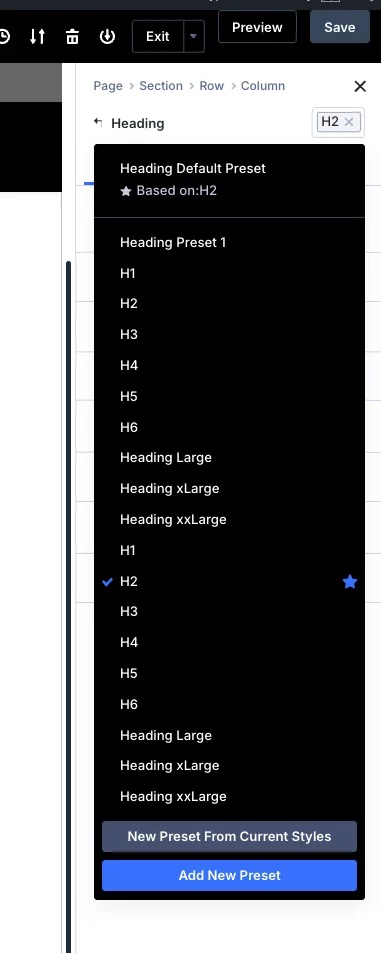
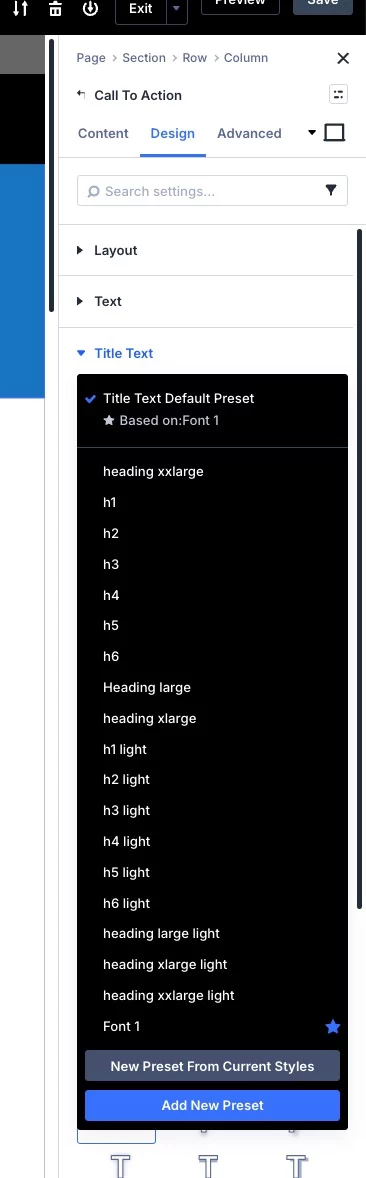

Hi Randal Birkey Sometimes we do not get answers here - so I learned to ask GEMINI (AI) for quick help. I copied your Post/Question into AI and this is the answer I got. Maybe this can help you - if not feel free to delete it 😇
This happens because of how the Divi Builder handles Presets. Even though you are using the "Krafter 2.2" layout, the behavior you are seeing is standard Divi functionality.
Here is the breakdown of why this is happening and how to fix it.
Part 1: Why do I have duplicate Heading Presets?
The Cause:
When you "added the Headings back in," you likely clicked "Create New Preset" from the presets dropdown. In Divi, creating a preset generates a unique ID for that style. It does not automatically know that you intended to replace the old "Semi-Bold" version with the new "Medium" version; it simply sees a request to save a new preset.
Now you have Heading Presets (Old/Semi-Bold) and Heading Presets (New/Medium).
How to correct it (Delete the duplicates):
You need to delete the old presets so they stop cluttering your list.
- Open any page with the Visual Builder.
- Open the settings (gear icon) of a Text Module (assuming that’s where your heading presets are).
- Click the Preset dropdown menu at the very top (it will likely say "Default" or the name of your preset).
- Hover over the old/incorrect preset name.
- A Trash Can icon will appear on the right side of that preset name. Click it to delete it.
- Crucial Step: Once the old one is gone, click the new correct preset, hover over it, click the Star icon to make it the "Default." This ensures all future Text Modules use the correct Medium weight automatically.
Part 2: Why don't the presets show up in the CTA (Call to Action)?
The Cause:
This is the most confusing part of Divi for new users: Presets are Module-Specific.
A preset you create for a Text Module (containing your H1-H6 styles) belongs only to the Text Module class.
- The Call to Action (CTA) module is a completely different tool.
- The CTA module has its own internal code for "Title" and "Body Text."
- Therefore, the CTA module cannot "see" or "load" a preset made for a Text Module.
How to correct it:
You cannot simply "load" the heading preset into the CTA, but you can copy the styles so you don't have to redo the work manually.
Option A: The "Extend Styles" Method (Fastest)
-
Create a Text Module on your page and apply your correct Heading Preset (the Medium weight one).
-
Right-click on that Text Module and select Copy Module Styles.
-
Right-click on your CTA Module and select Paste Module Styles.
- Note: This might overwrite other settings (like background colors), so use with caution.
-
Better Alternative: Right-click the specific Heading in the Text Module settings (e.g., Heading Text H2) -> Copy Heading Text H2 Styles. Then go to the CTA Module -> Design -> Title Text -> Right-click -> Paste Title Text Styles.
Option B: Create a specific CTA Preset
If you plan to use this CTA style often:
- Manually style one CTA module to match your "Krafter" headings (set the font to Medium, correct size, etc.).
- Go to the Preset dropdown inside the CTA module.
- Click Create New Preset and name it
CTA - Krafter Style. - Now, this preset will be available inside any other CTA module on your site.
Summary Checklist
- Duplicates: Open Module Settings → Preset Dropdown → Trash Can icon on the old ones.
- Missing in CTA: Text Module Presets do not work in CTA Modules. You must create a separate preset specifically for the CTA module.
Would you like me to explain how to set these fonts globally in the Theme Customizer instead, so they apply to ALL modules (Text, CTA, Blurbs) automatically?

Thanks, this is helpful. I wish I had understood this about presets before I dived into this project. There is so much to learn about DIVI 5 and Mak's design system.