
KC Farmer posted a question about expanding text within a Blurb module...
This got me thinking: Can this be solved purely visually in Divi, or would it turn into endless klicking solution in Divi5 Modul-Design depending on how many Blurb modules are used side-by-side?
It then occurred to me that with responsive and fluid design, these modules are stacked vertically on mobile devices. In that context, it actually prevents an endless scrolling; users can simply expand the specific content they’re interested in.
So, I dove straight into the research, and here is the first overview I’ve put together to share with the community.
Here you'll find KC Farmers Post: https://diviuniversity.com/portal/space/divi-community/post/formatting-question
What Divi 5 Can Do Visually — And Where CSS or JavaScript Still Come In
What Divi 5 Handles Entirely on Its Own, No Code Needed
Starting with the good news: the visual editor in Divi 5 is genuinely impressive. For the vast majority of design decisions, you will never need to open a code editor.
Spacing, typography, colours, hover effects, responsive breakpoints, entrance animations, background options, filters, and transforms — all of this lives natively in the builder. You can save any combination of these settings as a Preset and apply it to other modules across your site in one click. Divi 5 also introduced Design Variables, which let you define global values for colours, fonts, and spacing, so a single change updates your entire site at once.
The Big News: Divi 5 Interactions
In June 2025, Elegant Themes released the Interactions system for Divi 5 — a visual, no-code tool built directly into the Advanced tab of every module, row, column, and section. With it, you can wire up genuine interactivity without writing a single line of JavaScript.
Every interaction is built from three pieces: a Trigger (what starts it), an Effect (what happens), and a Target (which element on the page is affected).
Triggers you can choose from:
• A visitor clicking an element
• A visitor hovering over or moving away from an element
• An element entering or leaving the visible screen area as the user scrolls
• The page finishing loading, with an optional time delay
Effects you can apply:
• Toggling an element between visible and hidden
• Showing or hiding an element
• Toggling, adding, or removing a Preset from an element
• Toggling, adding, or removing an HTML attribute such as a CSS class
• Setting or removing a browser cookie
• Smoothly scrolling the page to a specific element
• Making an element follow the visitor’s mouse movement
The target can be any element on the page — not just the element the visitor clicked.
What Interactions Can Now Do — Without Code
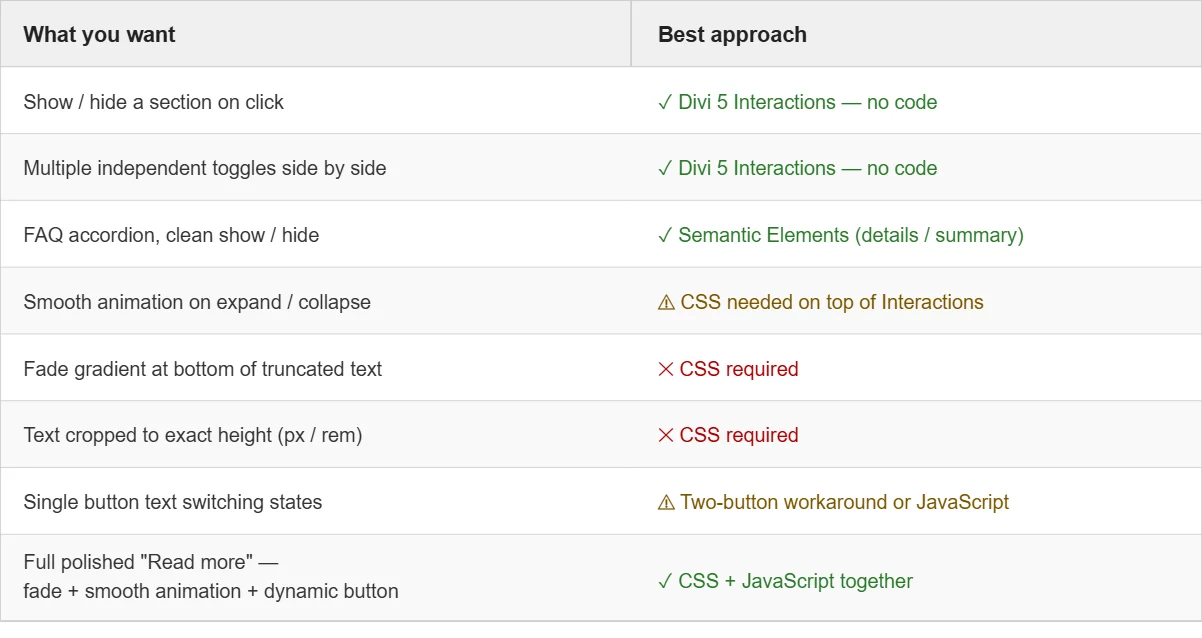
Showing and hiding a text block on click is now entirely visual. Set the text module to hidden by default, add an Interaction to your button with a Click trigger and a Toggle Visibility effect, and point it at the text module.
Multiple independent text blocks side by side also work without code. Because each Interaction targets a specific element, clicking the button on one blurb only affects that blurb. The others stay exactly as they are.
(As Mak has already shown in his YouTube videos, I don't necessarily use the standard Blurb module. Instead, I build my own by using a Heading module, Image module, Text module, Button module, and Group modules where they make sense. And Yes, I always use the KrafterPRO Presets for the consistend, fluid and responsive design.)
Popup overlays, content reveals, anchor scrolling — all covered natively by Interactions, including controlling visibility with a close button inside the popup itself.
The Semantic Elements Route: Toggles Without Anything Extra
Divi 5 also introduced support for Semantic Elements, which allows you to change the HTML tag that any Divi container or module outputs. This unlocks a very clean approach to expand/collapse toggles.
Modern browsers support two native HTML elements — details and summary — that handle expand and collapse behaviour completely on their own, with no JavaScript and no CSS required for the basic functionality. Keyboard accessibility is built in. Screen readers understand the open and closed states automatically.
In Divi 5, you assign these element types directly in the builder’s Advanced tab. A small amount of CSS makes the animation smooth and the styling match your design — but the fundamental open/close behaviour needs nothing extra at all. An excellent option for FAQ sections and product detail toggles.
Where Divi 5 Interactions Currently Has Limits
The Interactions system is powerful, but it is still a first iteration and has some genuine gaps worth knowing about.
Smooth animation on show/hide transitions is the most noticeable current limitation. When you toggle an element’s visibility using Interactions, it currently snaps rather than animating smoothly. Elegant Themes has confirmed that more animation control is coming, but for now, a soft fade-in or smooth expand still needs a few lines of CSS.
A single button whose text changes between two states — switching from “Read more” to “Read less” — is not directly supported by a single button module. The workaround is two button modules layered on top of each other, each controlling the other’s visibility alongside the text block. This works visually, but a single button with dynamic text still requires JavaScript for the elegant version.
Fading out text at a specific height — where text trails off with a gentle gradient before the “Read more” button — cannot be created through the visual editor. This visual effect requires CSS. The same applies to limiting a text block to an exact height in pixels or rem units.
Which Approach for Which Situation
Now that we have the full picture, here is a clear breakdown of when each approach makes sense.
Use Divi 5 Interactions (purely visual) when you want to show or hide entire sections, modules, or elements on a click or scroll trigger. Covers most toggle use cases, popups, content reveals, and multiple independent collapsible blocks side by side. If you do not need a fade effect, Interactions handles it completely.
Use the Semantic Elements approach (visual + optional CSS) for FAQ-style content where the full text appears and disappears on click. The browser handles the logic natively. A small amount of CSS makes it smooth and styled.
Add CSS on top of Interactions when you want smooth animation instead of a snap, a fade-out gradient at the bottom of truncated text, or precise control over visible text height.
Add JavaScript when you need a single button whose label changes dynamically, or when the interaction logic becomes more complex — for example, when clicking one item should close all other open items simultaneously.
Use CSS and JavaScript together for the most polished result: text visually cropped with a soft fade, expanding smoothly on click, with a button that cleanly switches between “Read more” and “Read less.”
The Bigger Picture
Divi 5 has moved considerably closer to a genuine no-code experience for interactive elements. The Interactions system is a real leap forward, and the addition of Semantic Elements opens up approaches that are cleaner and more accessible than most plugin-based solutions.
That said, CSS and JavaScript still have their place — not as workarounds for a limited tool, but as the right tools for specific jobs. CSS handles visual presentation with precision that no GUI will ever fully match. JavaScript handles dynamic logic and stateful behaviour. Divi 5 handles the architecture, the layout, and a growing portion of the interaction layer.
Understanding where each one fits is what separates a page that works from a page that works beautifully.
In the next part of this series, we will build the “Read more” toggle three different ways — one using only Divi 5 Interactions, one using the Semantic Elements approach, and one using the full CSS and JavaScript combination — with step-by-step instructions and everything you need to copy and paste directly into Divi 5.
This post is part of a series on building smarter, more interactive layouts in Divi 5.

>>>In the next part of this series, we will build the “Read more” toggle three different ways
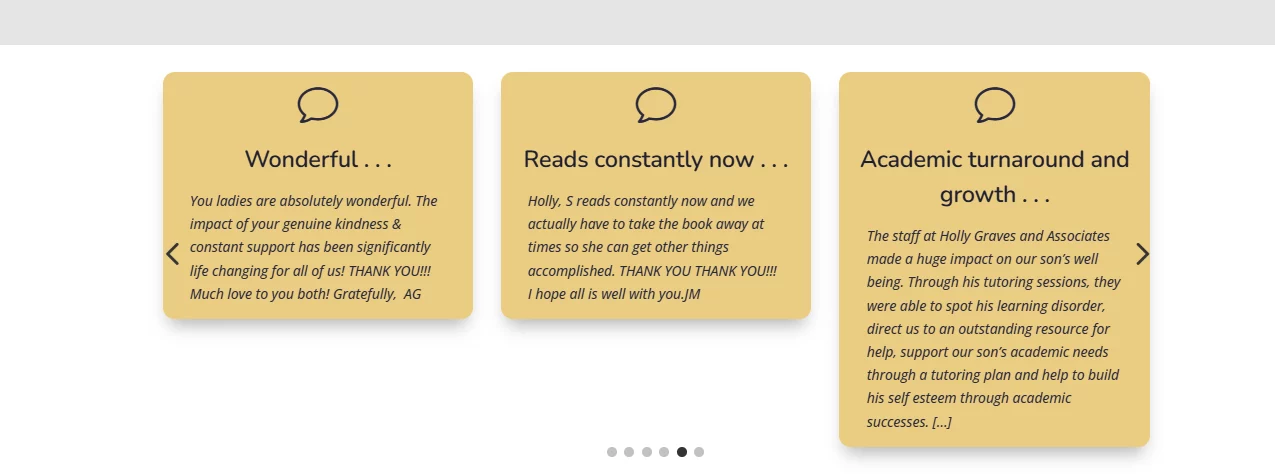
Thanks, Frank! waiting with baited breath. I have a Group Carousel with a testimonial slider pulling excerpts from posts in the "Testimonial" category. When the excerpt exceeds the character limit, an elipsis is inserted automatically but it doesn't link to the post. I think the solution is adding some CSS (found some below) but it doesn't work when added in the Child Theme (SiteKrafterPro).
function custom_excerpt_more($more) {
global $post;
return '... Read More';
}
add_filter('excerpt_more', 'custom_excerpt_more');
Any ideas?

Here you will find Part III https://diviuniversity.com/portal/space/divi-community/post/part-iii-collapsible-content-cards-in
After writing the 3rd Part of the series, I will take a closer look at your Post with "add_filter..."
Have fun with Part III instead.
Frank Schlatter Thank you!
Hi David,
Good news — the fix for this is actually built right into Divi 5's Loop Builder, and you don't need any PHP code at all. The reason your excerpt_more filter isn't working is that Divi 5's Loop Builder renders excerpts through its own Dynamic Content system, not through WordPress's standard the_excerpt() function that the PHP filter targets. So the filter never fires in this context.
The built-in solution — two steps in the Visual Builder
Step 1 — Set the word count and "Read more" text on the excerpt itself
Open the Text module inside your carousel slide that's displaying the excerpt. Click the Dynamic Content icon and select Loop Excerpt. Once connected, Divi shows you additional options directly in that field — including Word Count to control how much text shows, and a "Read more" text field where you can enter your link label. This controls the truncation and appended text entirely within the builder.
Step 2 — Make the "Read more" actually link to the post
You have two options here depending on how you want the interaction to work:
Option A — Add a separate Button module below the excerpt text inside your carousel slide Group. In the Button settings → Content → Button Link, click the Dynamic Content icon and select Loop Link or Post URL. This gives you a clearly styled button that links to the individual post.
Option B — Make the entire slide card clickable. Open the Group or Column that wraps your slide content. Go to Content tab → Module Link, click the Dynamic Content icon, and select Loop Link. Now clicking anywhere on the slide card opens the post — no separate button needed.
Why the PHP approach doesn't work here
The excerpt_more and excerpt_length WordPress filters work when templates call the_excerpt() or get_the_excerpt() directly. Divi 5's Loop Builder bypasses this and renders dynamic content through its own internal system, so those filters are never called. This is a known characteristic of Divi 5's dynamic content pipeline — it gives you more visual control but means standard WordPress filters don't always apply in the expected way.
One thing to check
Make sure your Testimonial posts have an actual excerpt saved in WordPress (the Excerpt field in the post editor, below the main content area). If no manual excerpt exists, Divi 5's Loop Builder should auto-generate one from the post content — but there were some bugs with this for custom post types in earlier versions. If excerpts aren't showing at all, check that your Divi 5 installation is up to date, as several loop excerpt fixes have been shipped in recent releases.
Hope that gets you sorted — let me know how it goes!
References
Official Elegant Themes sources
- Loop Builder in Divi 5 — Official Help Center documentation covering Loop Excerpt with word count, "Read more" text, and Loop Link for buttons.
https://help.elegantthemes.com/en/articles/11863867-loop-builder-in-divi-5 - Build Custom Loops using Loop Builder in Divi 5 — Step-by-step Help Center guide covering the exact setup: excerpt Text module with Dynamic Content, word count setting, and Button module with Loop Link.
https://help.elegantthemes.com/en/articles/13644757-build-custom-loops-using-loop-builder-in-divi-5 - Everything You Need To Know About Divi 5's Loop Builder — Blog post that confirms: "Once added, click the dynamic content icon and select Loop Excerpt. When the dialog box appears, you can set any before and after text, the loop position, and the number of words, and read more text."
https://www.elegantthemes.com/blog/divi-resources/everything-you-need-to-know-about-divi-5s-loop-builder
Frank Schlatter Worked great! Many thanks. I used the "make entire slide clickable" option. Found the "Loop Link" at Slide→Content→Group Link URL 👌